Preface
It's been a long time since I originally wrote this article back in 2005 for Linux Journal. Do people even read paper any more? *smirk* I figured it needed a little update. I will walk you through all the steps necessary to boot up ancient UNIX (ancient as in 1970s) on your very own computer using the SIMH simulator. I also include special notes if you want to run the examples on the Raspberry Pi and Raspbian. (Which didn't even exist in 2005!). Enjoy!
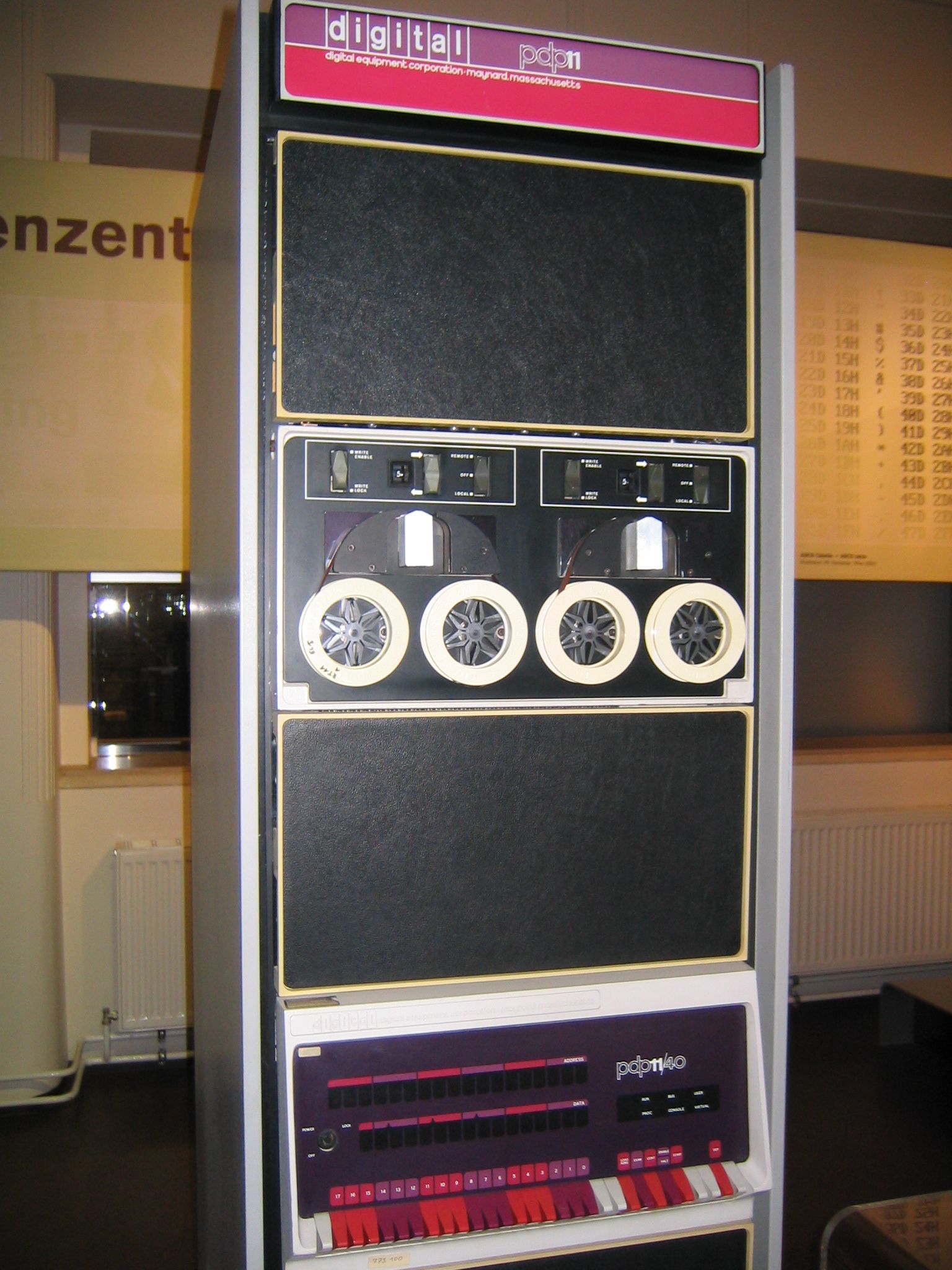
Image Credit: "Pdp-11-40" by Stefan_Kögl - Own work.
Licensed under CC BY-SA 3.0 via Wikimedia Commons.
I have been called “nostalgic beyond my years” by some, and I suppose
that is accurate. I was born in 1976 during UNIX's childhood. Little did I know we would grow up together and meet later in life.
I have always had a voracious
appetite for early minicomputer and mainframe history. I believe
recorded history itself is the single-most important innovation of human
existence. We humans seem to have a hard-wired compulsion to record,
pass on and learn from the mistakes and successes of those before us.
Open-source software and hardware is the natural evolution of this concept applied
to technology. In the Open Source philosophy, we are all
free to learn from the wealth of software created by the masses that
came before us. By examining the evolution of a project, we can learn
from the mistakes of others and, perhaps most important, copy verbatim from
their successes. By harnessing this freely available history as well
as unfettered cooperation, we advance the common good.
Recently, some companies have begun to loosen their grip on the early
computing “intellectual property”. Although some have not fully embraced
open source, these sometimes small, token gestures offer us a wealth
of knowledge. In this article, I focus on how we
can explore early operating system history by running
“historic” UNIX
releases on our very own Linux boxes using a simulator. The SCO Group
(Yes, “them”, previously Caldera, Inc.) claims current ownership of early
UNIXes and has released them under an “Ancient Unix”
license, which allows
for noncommercial use.
I focus here on the UNIX V5 release, because it
is the earliest available UNIX. UNIX V6, V7 and various early BSD releases
are also available. If you plan on trying out any of these OSes,
examine the licenses included with each before booting them up.
Stranger in a Strange Land: the UNIX V5 User Environment
The UNIX V5 system provided in the disk image we will use is rather stark and
unfriendly compared to modern, lush UNIX/Linux systems. Here are a few pointers before we get started:
-
sh is the shell. It's only 858 lines of C; don't expect it to work
like the /bin/bash shell.
-
Use chdir to change the default directory.
-
Backspace and arrow keys rarely work.
-
ed is the text editor; see en.wikipedia.org/wiki/Ed.
-
bas is a basic interpreter.
-
fc is a FORTRAN interpreter.
-
cc is the C compiler.
-
Source code is in /usr/source.
-
There are not many files (528), so use find / -print to
see what else is included. It should scroll by just fast enough to read it ;-)
In order to explore these OSes, we need to be able to run them on
commonly available computing hardware. Luckily, we have simulators
for this purpose. Because of its quality and depth of support,
one of the most popular simulators is SIMH, It was created in 1993. SIMH is available from
the SIMH Web site (see the Resources below). SIMH is available as source code and compiles and runs on every popular
*nix OS, as
well as Microsoft Windows. It is capable of simulating a wide range of
early computer systems, including Digital Equipment Corp.'s PDP and VAX
systems, the MITS Altair, early IBM systems and many more. Some of
the most historically significant systems are DEC's PDP series, the
birth-system of UNIX.
SIMH is a ground-up system simulator; it simulates the CPU, memory,
firmware and devices of a number of early computer systems. This
means that original distributed software can run unmodified on these
simulated systems. SIMH successfully simulates devices such as disks,
tape drives, printers and networking devices. This means that not only
can we run these historic systems, but we can communicate and transfer
data to and from them using modern technologies and protocols. A great
deal of thanks is owed to the authors and contributors of SIMH. Their decision to
release under open source furthers all our understanding
of our history and guarantees that this history will always be free.
Getting Started: Installing SIMH

|
Raspberry Pi Note
If you are running this on a Raspberry Pi running Raspbian you are in luck, SIMH is available as pre-built software. Skip the compile in this section and just install simh using apt-get:
sudo apt-get install simh
Then just skip to Running UNIX V5
|
Below I will detail the command line steps needed to download and compile the SIMH source code.
The latest SIMH release is V3.9-0 at the time of this writing.
If you want to use Ethernet emulation, you will need to install the PCAP development packages for your OS. The SIMH installation documents explain
how to do this, and you can skip this step if you're not going to be using
networking support on your simulated machines. If you are running Fedora or similar you can simply run:
$ sudo yum -y install libpcap-devel
|
The stuff you type to compile SIMH is below in bold.
$ mkdir simh
$ cd simh
$ wget http://simh.trailing-edge.com/sources/simhv39-0.zip
$ unzip simhv39-0.zip
$ mkdir BIN       (Note all CAPS)
$ gmake USE_NETWORK=1 all
(Note: Only include USE_NETWORK=1 if you have PCAP development libs installed)

(compilation chatter omitted, go get a cup of coffee, this will take a moment... You can ignore any WARNINGs)

$ ls -l ./BIN/
total 11624
-rwxrwxr-x  1 matt matt  301959 Jul 16 18:45 altair
-rwxrwxr-x  1 matt matt  482274 Jul 16 18:45 altairz80
-rwxrwxr-x  1 matt matt  529317 Jul 16 18:44 eclipse
-rwxrwxr-x  1 matt matt  297590 Jul 16 18:45 gri
-rwxrwxr-x  1 matt matt  375737 Jul 16 18:44 h316
-rwxrwxr-x  1 matt matt  577678 Jul 16 18:44 hp2100
-rwxrwxr-x  1 matt matt  355225 Jul 16 18:44 i1401
-rwxrwxr-x  1 matt matt  381672 Jul 16 18:45 i1620
-rwxrwxr-x  1 matt matt  441079 Jul 16 18:46 ibm1130
-rwxrwxr-x  1 matt matt  502037 Jul 16 18:46 id16
-rwxrwxr-x  1 matt matt  508378 Jul 16 18:46 id32
-rwxrwxr-x  1 matt matt  294614 Jul 16 18:46 lgp
-rwxrwxr-x  1 matt matt  434940 Jul 16 18:44 nova
-rwxrwxr-x  1 matt matt  345034 Jul 16 18:41 pdp1
-rwxrwxr-x  1 matt matt  752055 Jul 16 18:43 pdp10
-rwxrwxr-x  1 matt matt 1055376 Jul 16 18:43 pdp11
-rwxrwxr-x  1 matt matt  474153 Jul 16 18:42 pdp15
-rwxrwxr-x  1 matt matt  459203 Jul 16 18:41 pdp4
-rwxrwxr-x  1 matt matt  460363 Jul 16 18:41 pdp7
-rwxrwxr-x  1 matt matt  499473 Jul 16 18:42 pdp8
-rwxrwxr-x  1 matt matt  467662 Jul 16 18:42 pdp9
-rwxrwxr-x  1 matt matt  352233 Jul 16 18:45 s3
-rwxrwxr-x  1 matt matt  429312 Jul 16 18:46 sds
-rwxrwxr-x  1 matt matt  982694 Jul 16 18:43 vax
|
This builds all possible system simulators. Each simulator becomes
a separate binary in the ./BIN/ directory. SIMH can be run as any
normal user, but if you want to use Ethernet network simulation, you
need to execute it as root (under UNIX) to allow libpcap access to the
Ethernet device. Otherwise, continue as any non-root user. Our particular example of UNIX V5 does not use networking.
Running UNIX V5
|
|
Raspberry Pi Note
If you are running this on a Raspberry Pi running Raspbian you can perform all these steps as the "pi" user in it's home directory. Make sure you have at least 4MB of free space. (Yes, You read the correct. The entire UNIX V5 is less then 4MB.)
|
UNIX V5, released in June 1974, was still very early in UNIX
development at Bell Labs. Much of the system was still written
in assembler. This disk image includes a working C compiler (cc)
and a great deal of interesting source code under /usr/source.
To begin our exploration, we must download the UNIX V5 disk image. In the same shell as you compiled SIMH, run the following:
$ mkdir uv5
$ cd uv5
$ wget http://simh.trailing-edge.com/kits/uv5swre.zip
$ unzip uv5swre.zip
|
This zip archive contains
the pre-installed image file as well as a README and file containing
license information. The disk image is a snapshot of a working installed
system. In this case, it is simulating an RK05 disk drive. We must now
collect the pieces we need to get this system booted. Begin by copying the BIN/pdp11 binary from under the SIMH build into our uv5 directory, then we will create a small config file "pdp11.ini" that tells the simulator how to boot UNIX.
|
|
Raspberry Pi Note
If you are running this on a Raspberry Pi running Raspbian skip the next step where you copy (cp) the pdp11 binary and instead, run the following:
ln -s /usr/bin/pdp11 .
|
Create a file pdp11.ini with your favorite editor and place the following lines in it.
set cpu U18
attach rk0 unix_v5_rk.dsk
boot rk0
|
This tells the simulator what kind of CPU to emulate and to attach the
unix_v5_rk.dsk file as a simulated RK-style disk using the rk0
device name. Finally, this file tells the simulator to boot the OS
image on that disk.
Your uv5 simulator directory should look like the following:
$ ls -l
total 3916
-rw-rw-rw- 1 matt matt   12299 Jan 24  2002 AncientUnix.pdf
-rwxrwxr-x 1 matt matt  681169 Aug 16 20:13 pdp11
-rw-rw-r-- 1 matt matt      47 Aug 16 20:18 pdp11.ini
-rw-rw-rw- 1 matt matt     263 Nov 25  1996 README.txt
-rw-rw-rw- 1 matt matt 2494464 Sep  8  1998 unix_v5_rk.dsk
-rw-rw-r-- 1 matt matt  806708 Jan 31  2002 uv5swre.zip
|
We are ready. Let's boot UNIX V5 and have some fun! Follow the example session below or go off on your own exploring. Note, you will likely need to use CTRL-h as backspace if you make a mistake.
$ ./pdp11

PDP-11 simulator V3.9-0
Disabling XQ
@unix

login: root

# ls -l /
total 60
drwxr-xr-x  2 bin       944 Nov 26 18:13 bin
drwxr-xr-x  2 bin        80 Nov 26 18:13 dev
drwxr-xr-x  2 bin       240 Mar 21 12:07 etc
drwxr-xr-x  2 bin       224 Nov 26 18:13 lib
drwxr-xr-x  2 bin        32 Nov 26 18:13 mnt
drwxrwxrwx  2 bin       112 Mar 21 12:11 tmp
-rwxrwxrwx  1 bin     25802 Mar 21 12:07 unix
drwxr-xr-x 14 bin       224 Nov 26 18:13 usr
|
Let's look at some source code, starting with the "echo" program. It's small and simple.
# chdir /usr/source/s1
# cat echo.c
main(argc, argv)
int argc;
char *argv[];
{
        int i;

        argc--;
        for(i=1; i<=argc; i++)
                printf("%s%c", argv[i], i==argc? '\n': ' ');
}
|
Let's compile the echo program, rename it and run a "Hello World"
# cc echo.c
# mv a.out newecho
# ./newecho Hello World
Hello World
|
Nice! Now, let's create, compile and run our own hello world C program. We will use "cat" as a poor man's editor to create the source file.
# chdir /tmp
# cat >hello.c
main()
{
   printf ("Hello World!\n");
}
Hit CTRL-d here
# cc hello.c
# ./a.out
Hello World!
|
Let's try a basic program next, use cat to create hello.b with some basic source
# cat >hello.b
10 print "Hello World!"
Hit CTRL-d here

# bas hello.b
run
Hello World!
|
All done for now, Let's HALT the system. In true historical UNIX style, we will run sync three times, then push the HALT button. Or in our case, the SIMH equivalent which is CTRL-e
# sync; sync; sync
# Hit CTRL-e here
Simulation stopped, PC: 001726 (MOV (SP)+,177776)
sim> exit
Goodbye
|
That's it! You're up and running. You have officially set your fingers on a
“real” historical UNIX system. As you can see, there is plenty of source
code to look over and a working compiler to play with. UNIX V5 is only
one of the early operating systems you can explore with SIMH. On the
SIMH Web site, you will find a repository of disk images for lots of other systems. The learning curve can be quite steep on these older OSs but there is a lot to learn from them. You can find conceptual bit and pieces of them strewn about inside all modern systems. It's living history at your fingertips.
If you are interested in seeing what a PDP-11 system and RK05 disk
actually looked like, take a look at the photo gallery on the SIMH Web site
(see Resources). Also, try searching Google Images
for a wealth of great photographs.
Resources
About the author
Matthew is the Senior Enterprise Architect at the New Jersey Institute of Technology (NJIT). When he is not working, he enjoys hacking on electronics, microcontrollers and embedded systems. He can also make a mean falafel when the circumstances call for it. Matthew is a total nerd and thus completely useless in conversations regarding "sports". Matthew also greatly dislikes talking about himself in the third person in author biographies.
For more random nonsense from Matthew he suggests following him on twitter: @sysmatt
Like this article? See more of Matt's published works